
If you want to report an occured issue you can help us by uploading log files of the affected client so we can use them to analyze the issue.
How to export logfiles
Android
-
Select the

-
Select

-
Select “About schul.cloud”.
-
Select "Log export".
-
Now you have two different options to export the log. (Please make sure to have a checkmark for “Delete logs after success”).
-
When selecting “Local storage” a .zip file named "schul.cloud_exports" will be saved in your phones download directory.
-
Please attach this file when you contact us.
-
-
When selecting “Cloud storage” a folder named “schul.cloud_exports” will be created in your personal cloud storage, which will include the log files.
-
Please open your personal cloud storage by leaving the current settings and returning to the start screen.
-
Select the


-
Tap the

-
Select “Share Link”.
-
Please select that “Everyone” can open the link and generate the link.
-
When tapping the link it will be copied to your clipboard.
-
Please send us the link when you contact us.
-
Once your support ticket is resolved you can delete the log folder from your cloud storage, this will also delete the share link.
-
-
iOS
-
Select the
-
Select
-
Select “About schul.cloud”.
-
Select "Logging".
-
If we did not specify otherwise you can leave the Log-Level as it is.
-
Select “export logfiles” at the bottom.
-
Your personal filestorage will open. You can save the file in the top level or you can select a folder/create one via

-
Select the saving with
-
Go back to the
-
Look for the previously created file, tap ind and hold until a menu appears.
-
You can “Export” the file in your local storage/another app or you can use “Share link” to create a download link to send us, so we can download the file.
Web-/Desktop
When being logged in:
-
Select the
-
Select
-
Select "About schul.cloud".
-
Select “Export logs”.
-
Please select “Local machine”.
-
A download dialogue will open to save the current log file locally on your computer.
-
Please attach this file when you contact us.
On the login page:
-
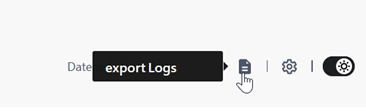
At the bottom right you find the option

-
The log file will be saved locally.
-
Please attach this file when you contact us.